updated 8/31/25

First Day Guide:
I'm New Here!

Follow these directions to get started playing and making games with Bloxels!

Before you leave today, you’ll spend time with Bloxels creating your own video games. But first…

Let's play!

Try some games first

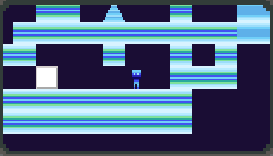
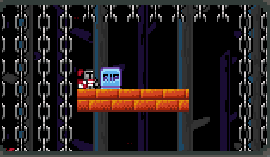
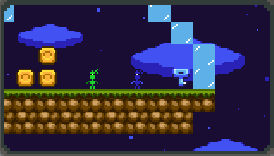
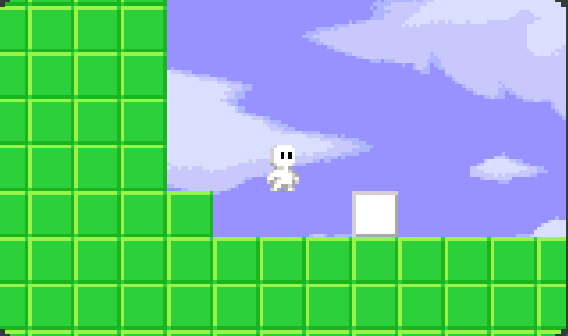
  • Click the Bloxels button to open in a new tab.
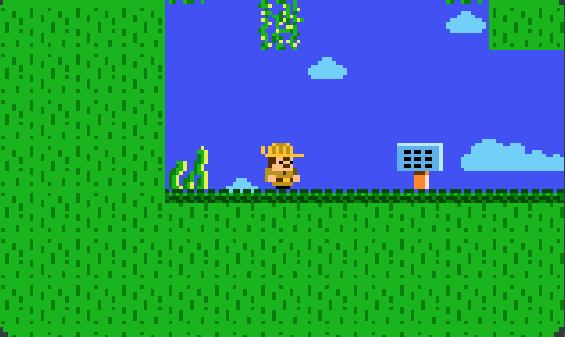
  • Play some Featured or Most Popular games in the Arcade.
  • This helps you learn the controls and the types of games you can make before you start building.

These games were all made by Brainiacs just like you!

Helpful games

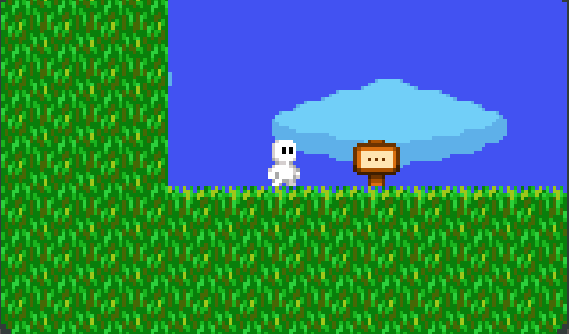
Playing these games will teach you a lot of what you need to know about creating with Bloxels.

Time to Log In!

Sign in & Start

  • Press Log In (top left corner). 
  • If you’re in the Arcade, click the User icon next to the word Arcade at the top of the screen. Then press Log In on the menu that pops up.
  • Enter your Class Code (your leader will share it).
  • Find your username with your initials → press Next
    Tip: Some names have extra letters to tell students apart. Ask your leader if you’re not sure which is yours. Don’t guess!
  • The first time you Log In, you will be able to create your own 4-digit password.
    Pick something easy to remember, but hard to guess. Passwords like 1234, 0000, 9999, etc. should not be used.

Start creating!

Build your first game or character

  • From the home screen, choose Build.
  • Pick one: Game or Character (You’ll be able to create art and backgrounds later)
  • Challenge: start at least one game or one character today!
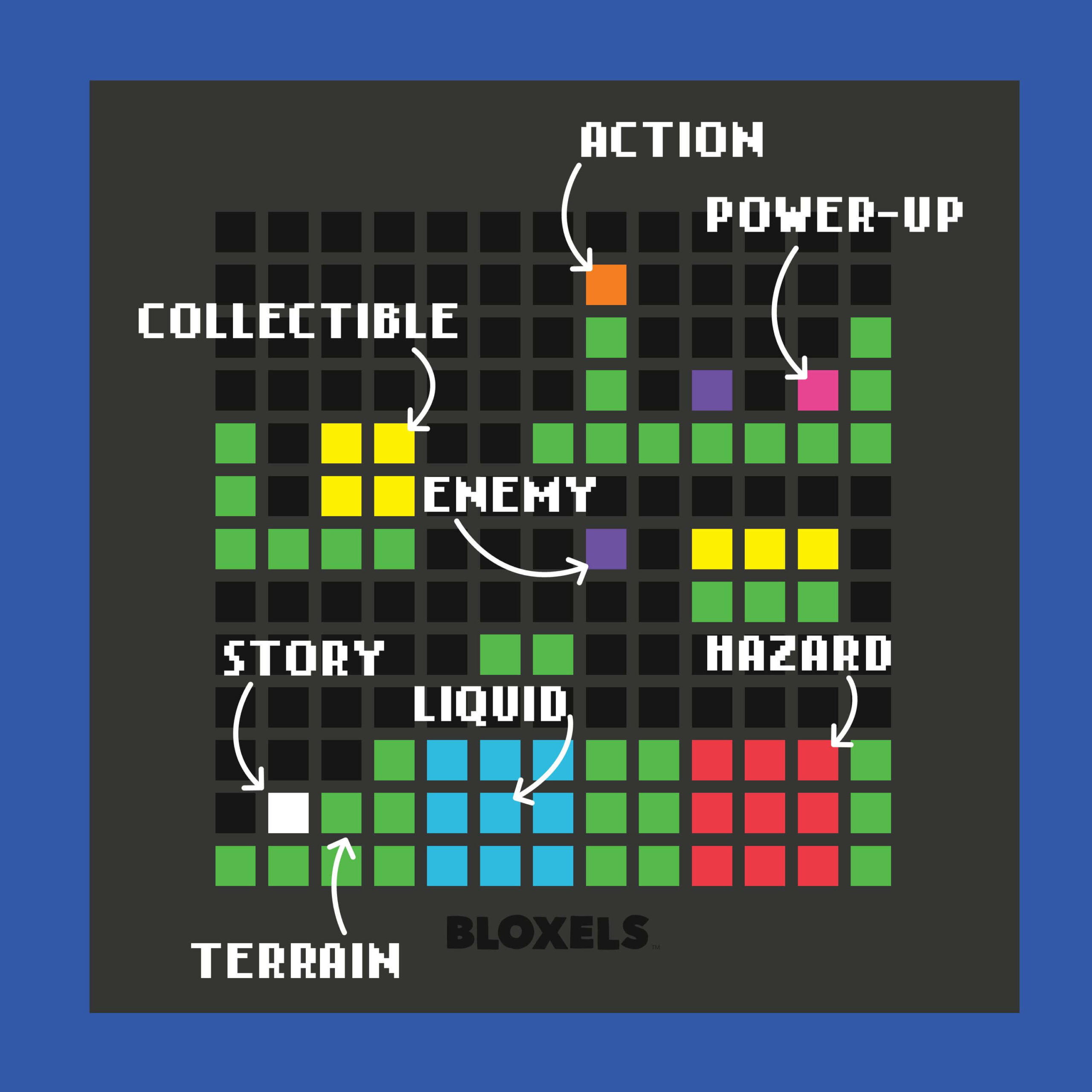
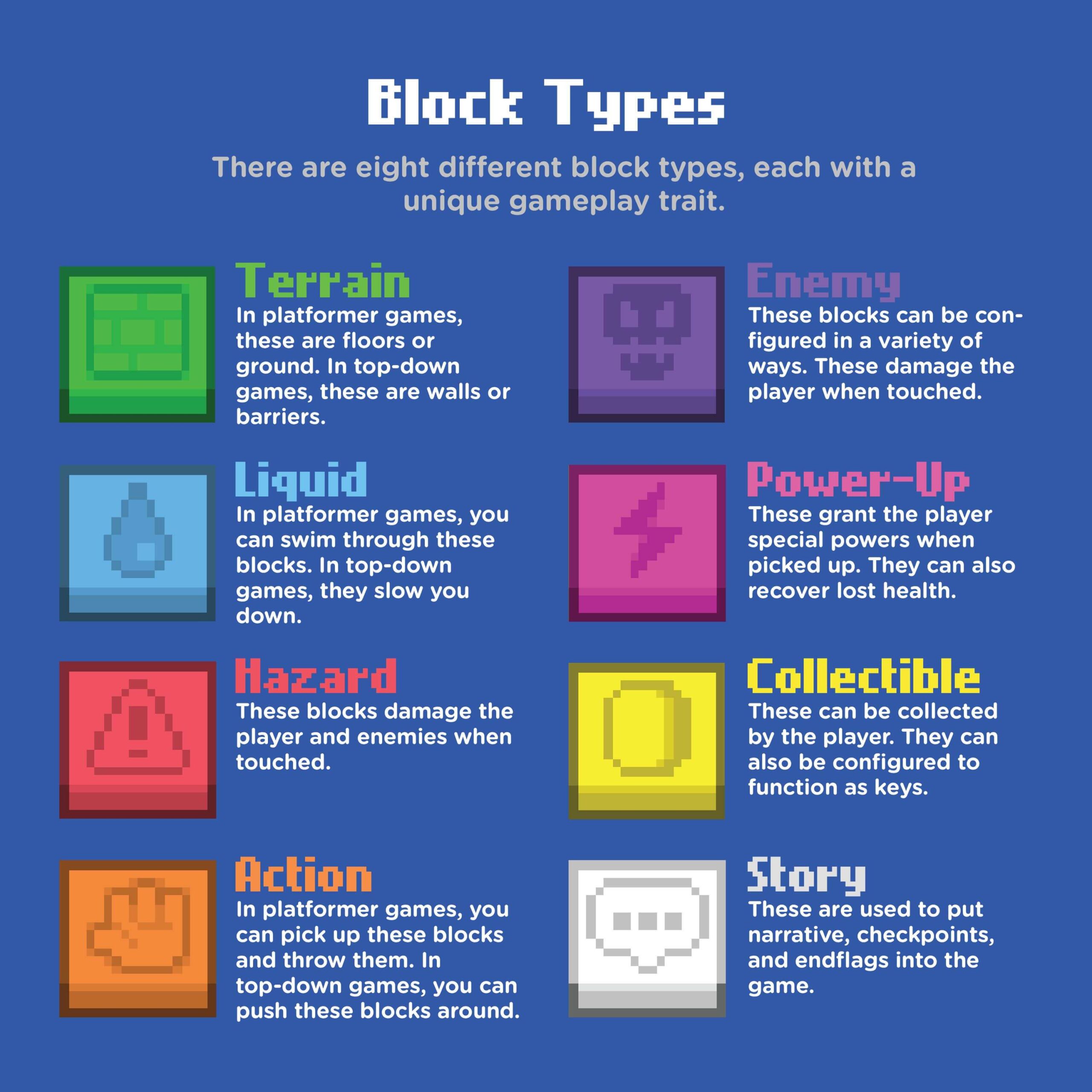
  • Use the block types guide (image below) to help.

Make it yours!

update your avatar

  • Avatars are characters, not art.
    • You’ll make your avatar in the Character Builder.
    • It can move (animated) or stay still — up to you.
  • Only the first frame matters.
    • Your avatar picture comes from the first frame of the Idle state.
    • Make sure that first frame looks exactly how you want it.
  • Set it as your profile picture.
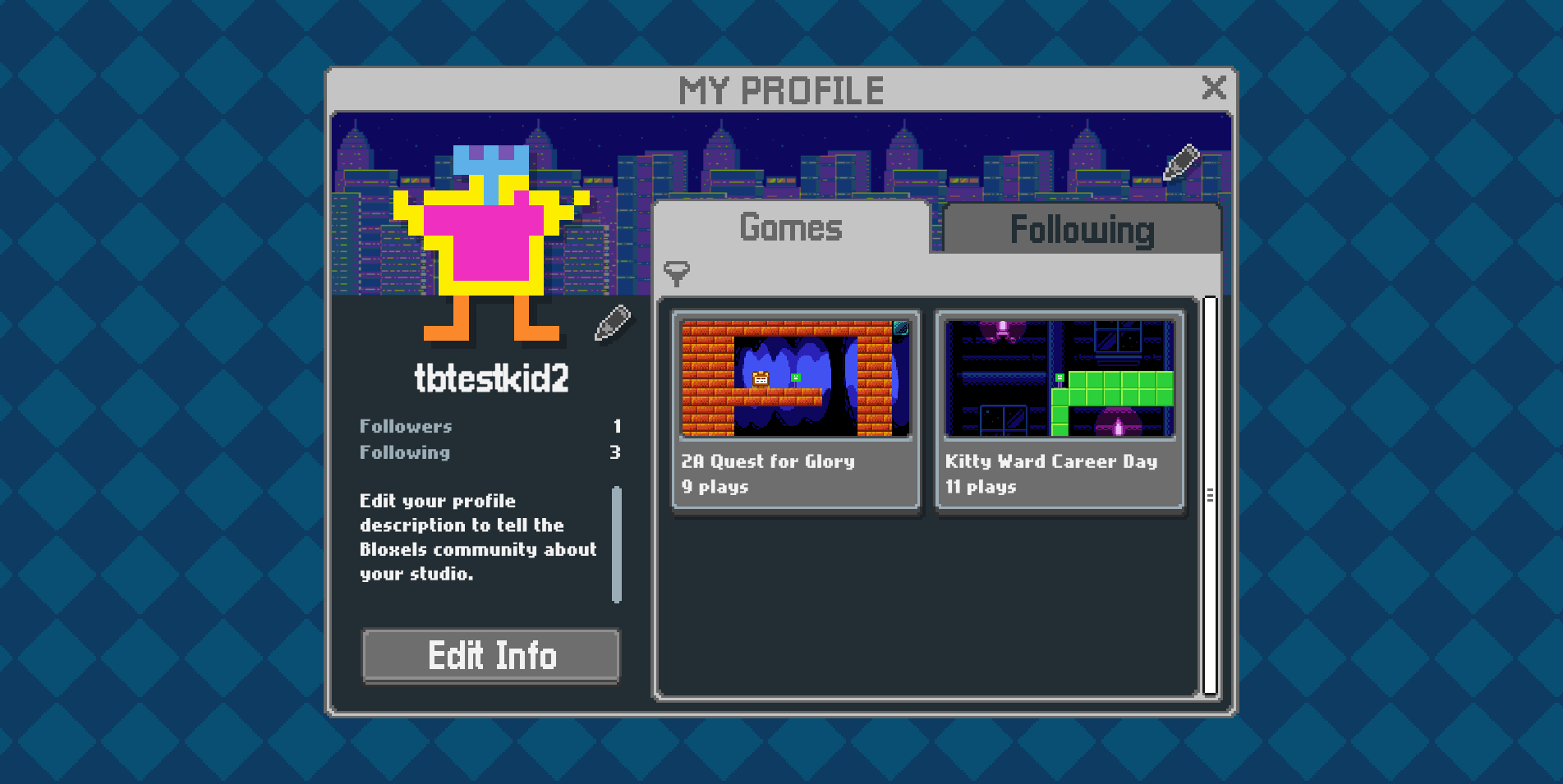
    • Go to My Profile (home screen button, or tap your avatar square anywhere).
    • Press the Pencil icon next to your avatar picture.
    • Choose your new character → click to set it.

✅ Now your avatar will show up everywhere — in the Arcade and on your games.

Creating a new avatar

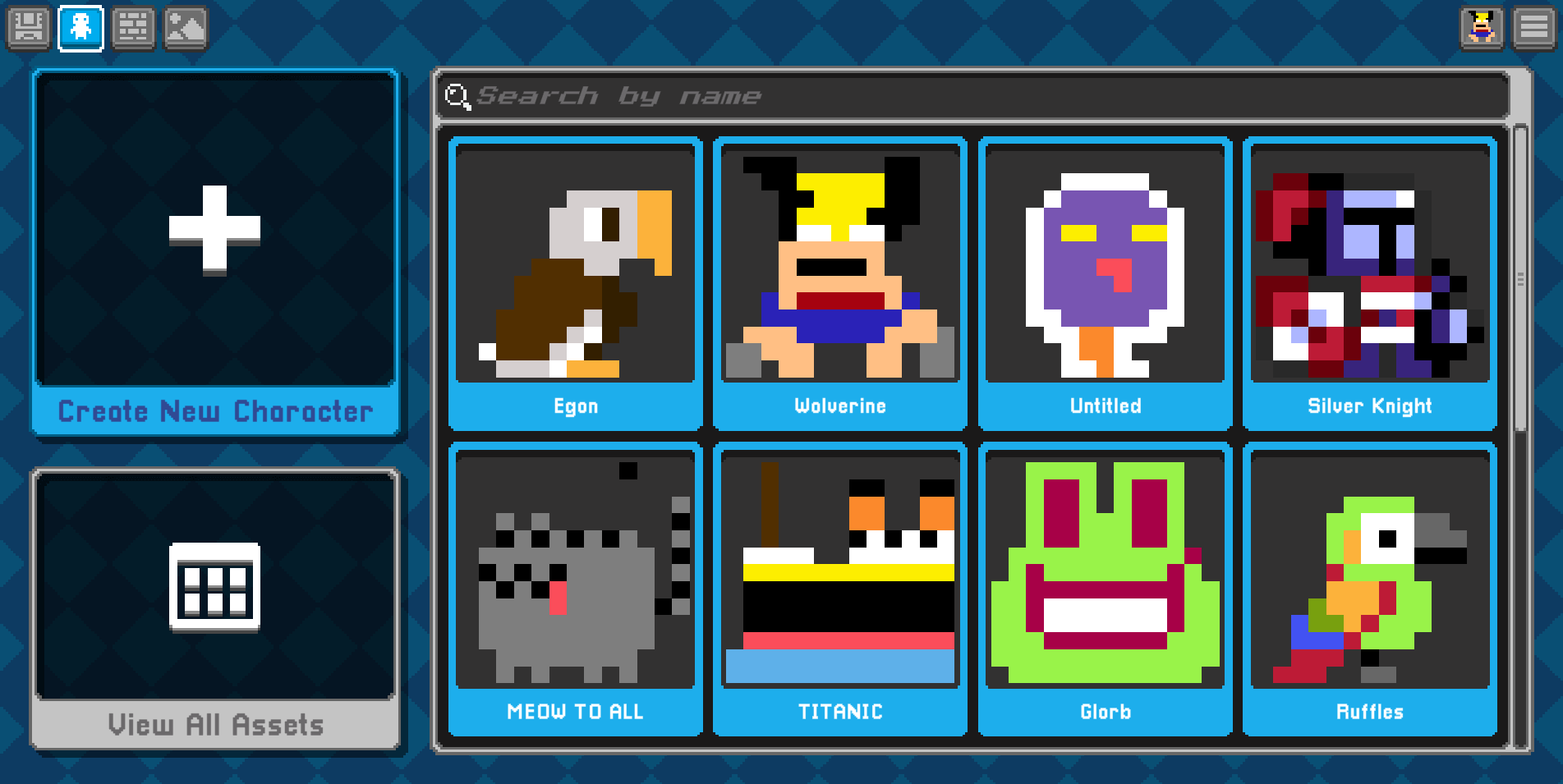
The view you see of your character on the Character Builder selection screen is what it will look like if selected to be your avatar.

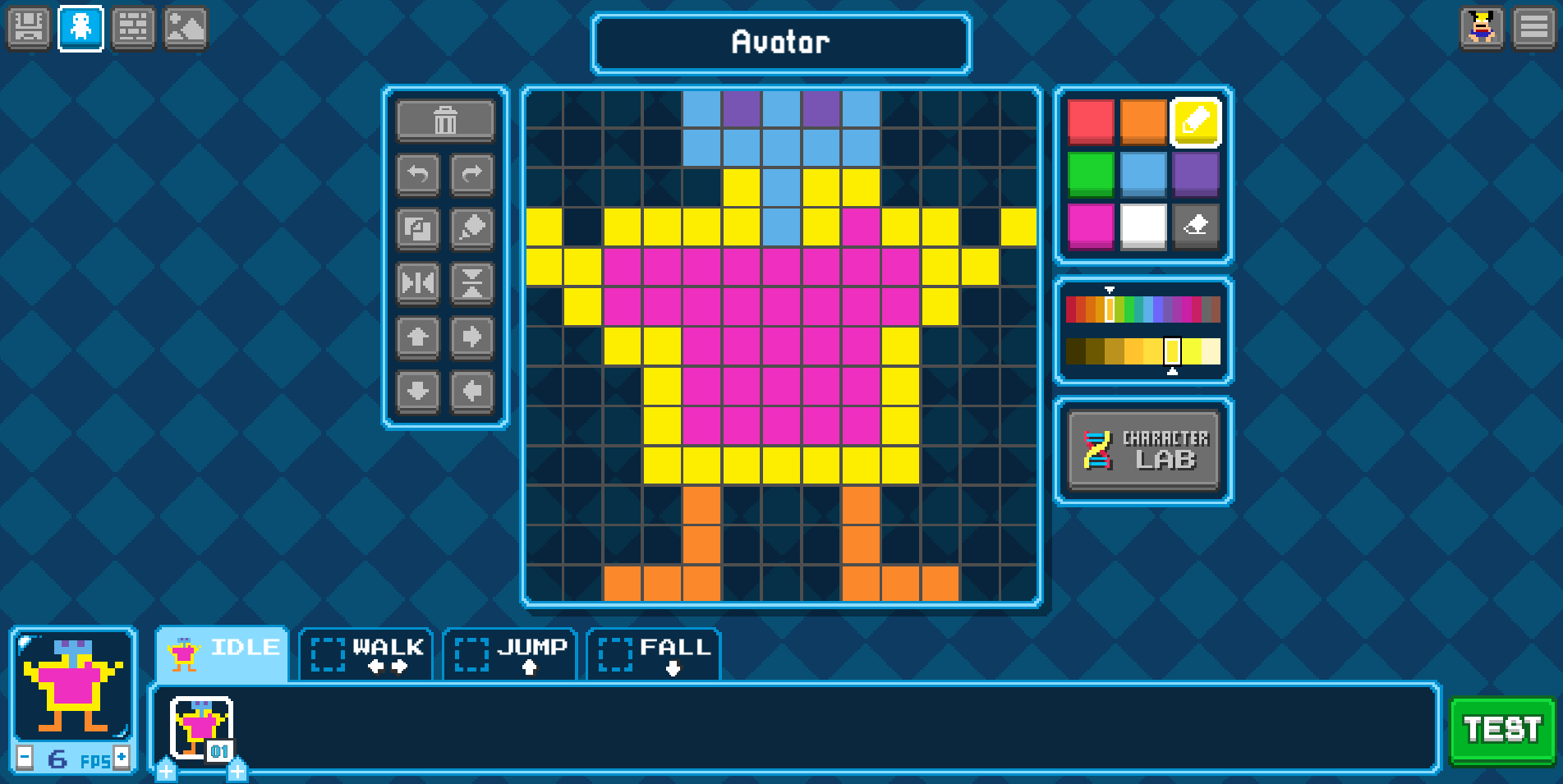
If you’re creating a new character just to serve as your avatar, you only need to complete one frame of the IDLE state.

Setting your avatar

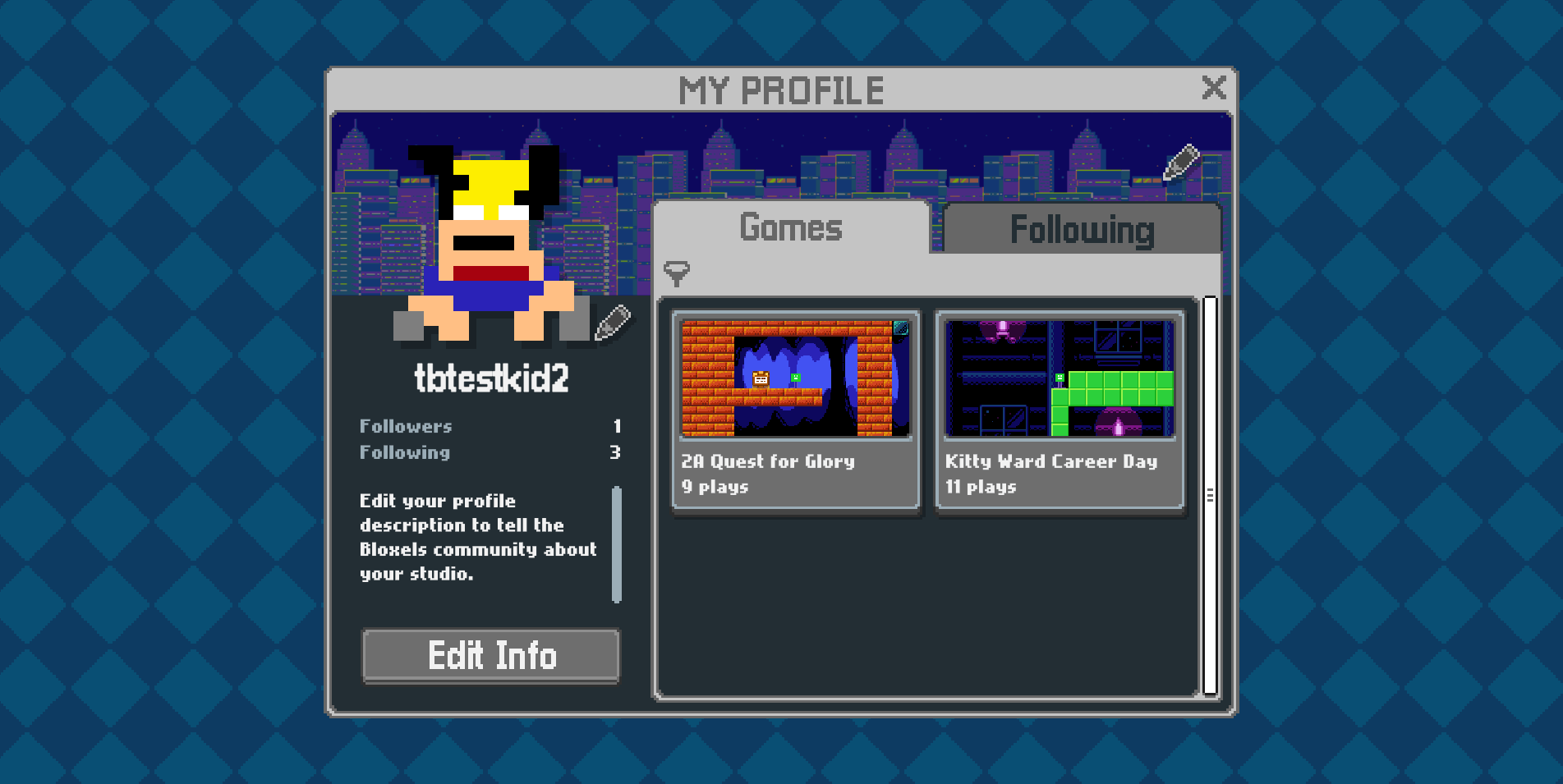
Your profile screen. Press the Pencil icon next to the avatar picture to select a new avatar.

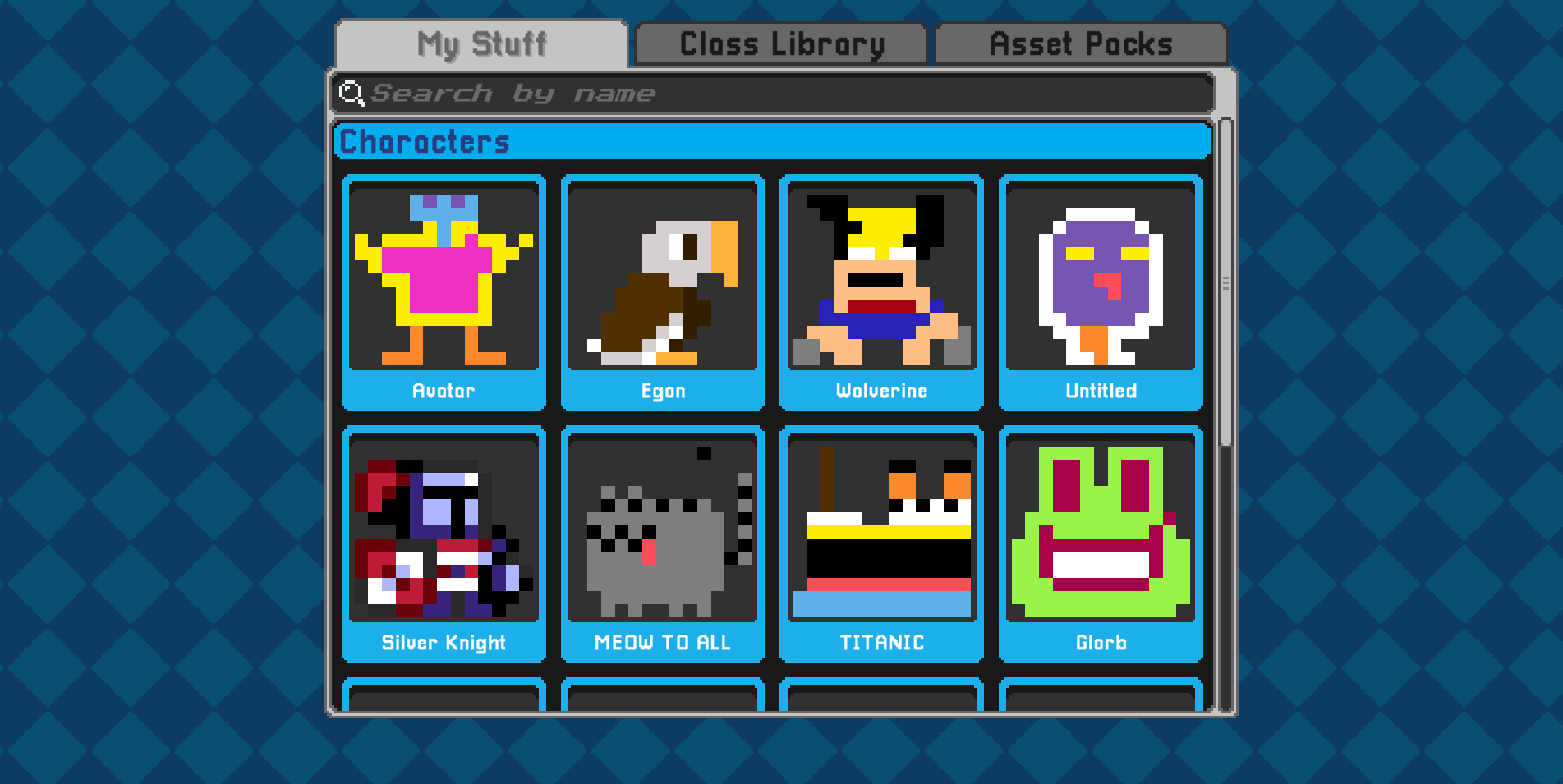
Just press on the one you want to select. What you see is how it will appear. If your avatar is animated, you will see an animated version of it in your profile.

🎉 That’s it! Your avatar is now part of your Bloxels profile. You’re ready to play, build, and show off your creations!

Think about it!

Reflect on what you know

Ask yourself:

  • Do I know the block types (terrain, enemy, hazard, power-up, etc.) and what they do?
  • Do I know how to add text/story blocks in my game?
  • Do I know how to create a goal or ending so players can win?

    👉 If you’re not sure about one of these, make that your challenge for next time. Head to the Bloxels page on this site. It’s full of helpful guides, tips, and examples to guide you!